Frequently asked questions
Clear answers, even if security is new to you.
What happens after you sign up, how to read the dashboard, what to do about a finding, and what the paid plans will include, explained for people who are not security specialists. Screenshots show the real product displaying fictional demo data.
Getting started
What an attack surface is, whether an assessment is safe, and whether you need technical knowledge.
What is an “attack surface”?
It is everything about your company’s systems that can be seen from the internet: your domain names, website and mail servers, subdomains such as shop.example.co.jp, certificates, and email settings.
Attackers start by reading this public information to find an easy way in. ZeroKai reads the same information first and shows you how you look from the outside and what to fix.
Does a small company really need this?
Yes. Most attacks are automated and do not care about company size: they scan public information widely and pick targets with weak settings. Missing protection against spoofed email, a forgotten subdomain, or a domain close to expiry are common at small companies too.
Each of these is usually easy to fix once you know about it. Knowing where you stand is the first step.
Will an assessment affect my website or email?
No. The free passive assessment only reads information that is already public. It does not scan ports, load pages, or send any traffic to your servers. DNS lookups go through public resolvers, so there is no load on your systems and nothing can go down.
Is this an acceptable way to check? Can I look up another company’s domain?
A passive assessment uses only sources anyone can read: DNS, Certificate Transparency logs, and domain registration data. It never accesses or tries to break into the target.
If your organization has not verified a domain, you see only a summary such as counts by category, never the asset list or finding details. A summary of a domain you do not control is not an assessment commissioned by its owner.
Can I use ZeroKai without security expertise?
Yes. Enter a domain and start an assessment; results are sorted by importance. Each finding has a plain summary and concrete steps under “What to do”.
The fix itself is usually done by whoever runs your website, email, or DNS, often an outside IT vendor. This page explains how to pass findings on. The glossary explains unfamiliar terms.
Does ZeroKai replace a vulnerability assessment or penetration test?
No. The free passive assessment maps what is exposed using public information. It does not test your servers for vulnerabilities and does not certify that a system is secure.
An active assessment (Tier 2), which tests your servers with your written authorization, is coming soon.
Free plan and dashboard
From sign-up to reading your results: what each screen shows and what to do about a finding.
What happens after I sign up?
The steps are:
- Create an account with a display name, email address, and password.
- Open the link in the email we send to confirm your address.
- Create an organization, such as your company name.
- On the dashboard, enter the domain you want to check and choose “Start assessment”.
- Results appear in about one to two minutes. To see the asset list and finding details, verify that you control the domain.
No credit card is needed.
Why do I need to verify my domain?
Results show which servers have which weaknesses, and that would help an attacker too. So the asset list, IP addresses, and finding details are shown only to an organization that has shown it controls the domain.
If the domain of your confirmed sign-in email address matches the domain you assess, control is verified automatically. If not (for example, you signed up with a Gmail address), verify with a DNS TXT record. Until then you see only a summary, as below.
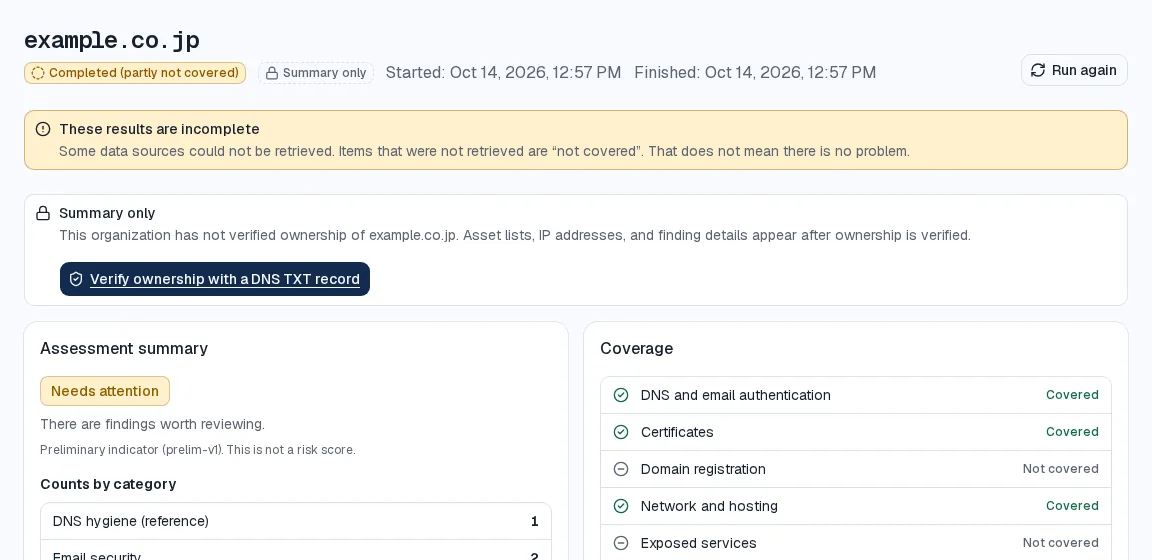
How do I verify a domain with a DNS TXT record?
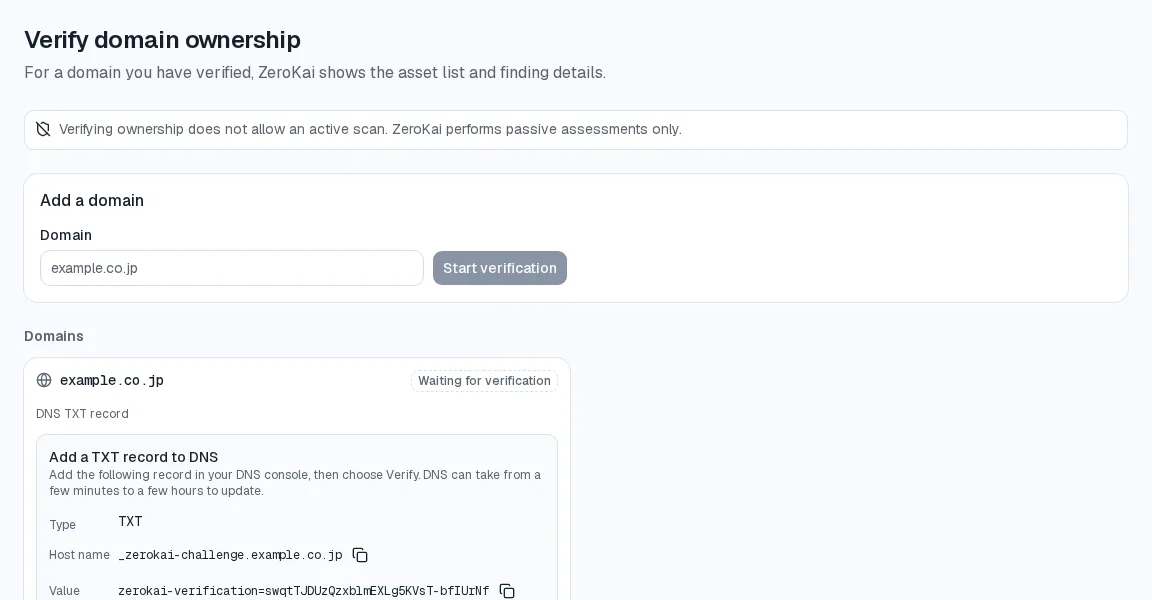
Open “Domain verification” in the menu, then:
- Enter the domain and choose “Start verification”.
- Add the record shown on screen to your DNS: type TXT, the host name starting with _zerokai-challenge., and the value starting with zerokai-verification=. If a vendor or registrar manages your DNS, send them these three items and ask them to add the record.
- Choose “Verify”. DNS changes can take from a few minutes to a few hours to appear. If the record is not found yet, try again later.
Verification lasts one year. It unlocks detailed results only; it is not permission for active scanning.
How long does an assessment take?
Usually one to two minutes. While it runs, you can see the progress of each data source.
If a source does not respond, the assessment finishes as “Completed (partly not covered)” and the missing areas read “Not covered”. Running it again later often fills them in.
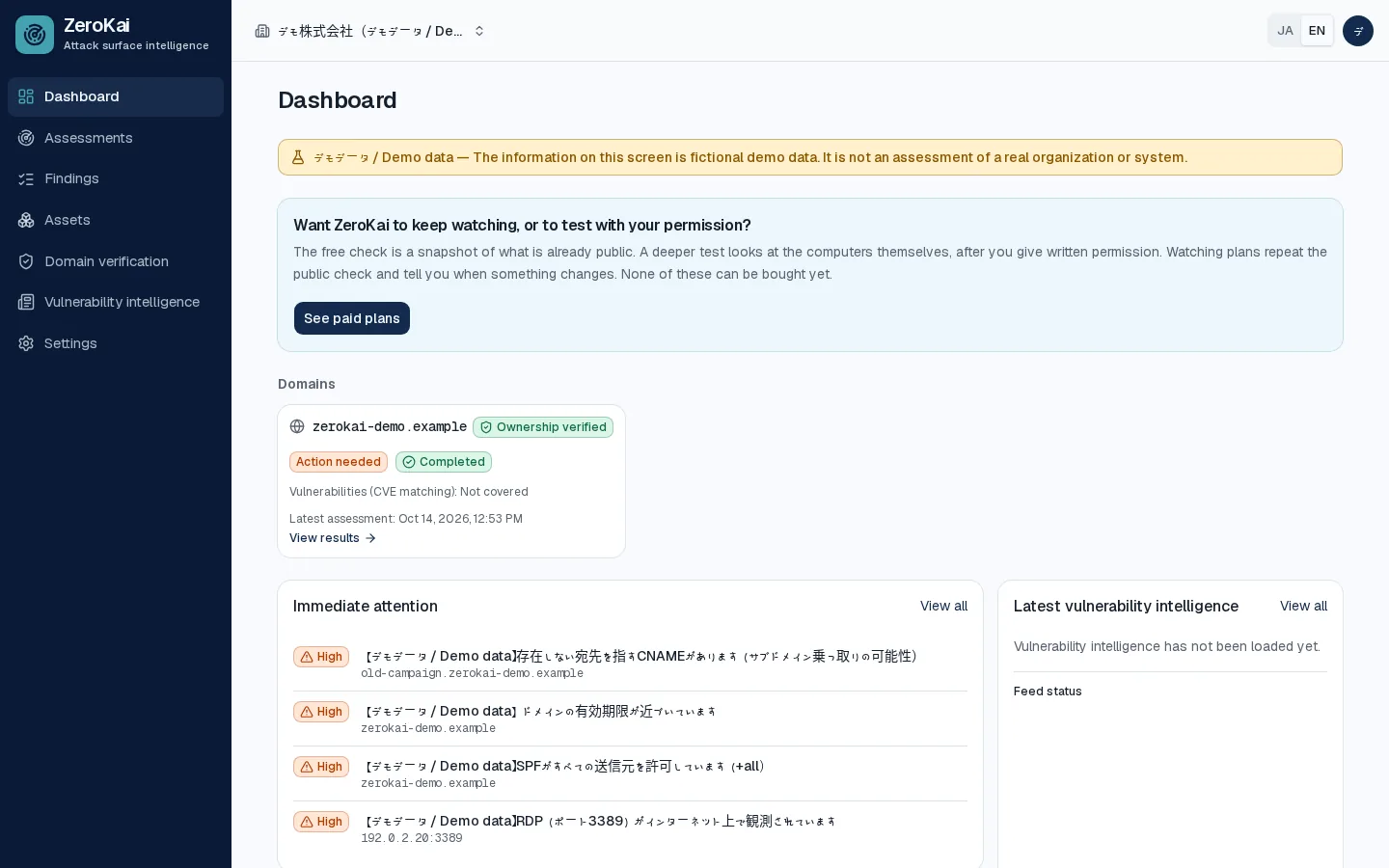
What does the dashboard show?
It is the first screen after you log in.
- Domains: for each assessed domain, the overall band, assessment status, whether control is verified, and when it was last assessed.
- Immediate attention: findings to deal with first. Start here.
- Main findings: the most important findings, highest severity first.
- Latest vulnerability intelligence: newly published vulnerability information.
Findings appear only for domains your organization has verified.
How do I read an assessment result (report)?
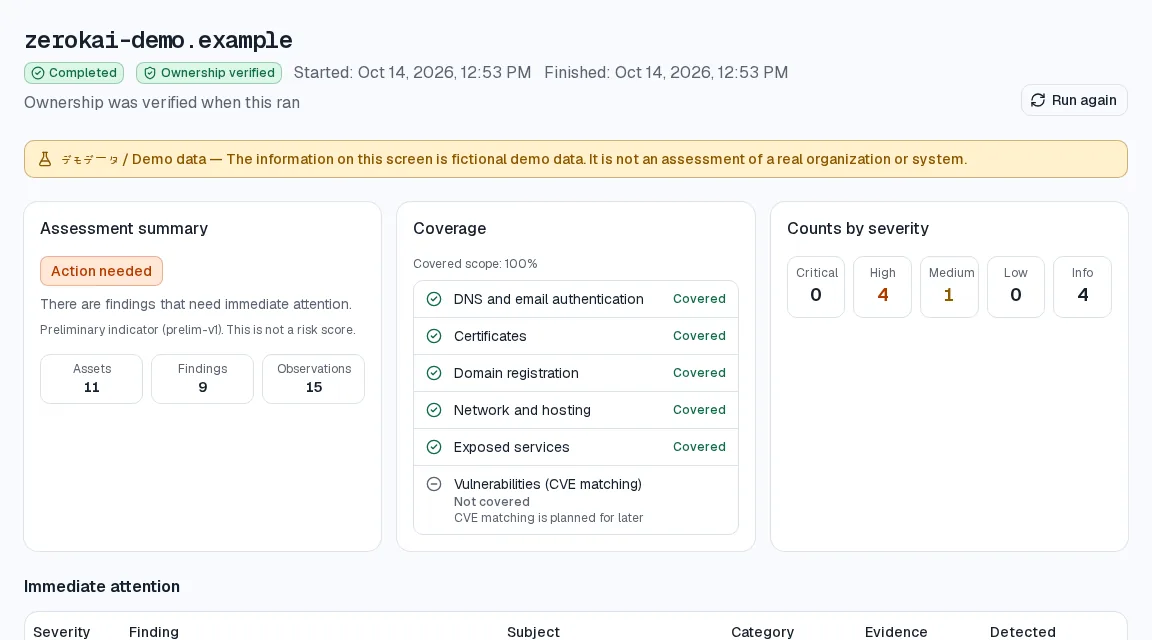
Open any assessment from “Assessments” to see everything from that run. From the top:
- Assessment summary: an overall band and the number of assets, findings, and observations. The band is a preliminary indicator, not a risk score.
- Coverage: what could be checked, shown as Covered, Partial, or Not covered.
- Counts by severity: Critical, High, Medium, Low, and Info.
- Immediate attention and findings: select a row to open its details.
- Discovered assets and data sources: what was found and where the information came from.
Exporting results, for example to PDF, is not available yet. PDF reports are planned.
What do bands such as “Action needed” mean?
They summarize the findings of one assessment:
- Action needed: there are findings that need immediate attention.
- Needs attention: there are findings worth acting on.
- Mostly sound: only minor findings.
- No major issues found: within what could be checked. Areas not covered are excluded.
- Insufficient data: DNS information could not be retrieved, so no band can be given.
The band is a preliminary indicator, not a risk score. A scored rating is planned.
How should I treat Critical, High, Medium, Low, and Info?
Severity is a guide to priority. As a rule of thumb:
- Critical and High: likely to lead to harm if abused. Ask whoever manages the system to look at it as soon as possible.
- Medium: plan a fix.
- Low and Info: not urgent; reference information to review when you next change settings.
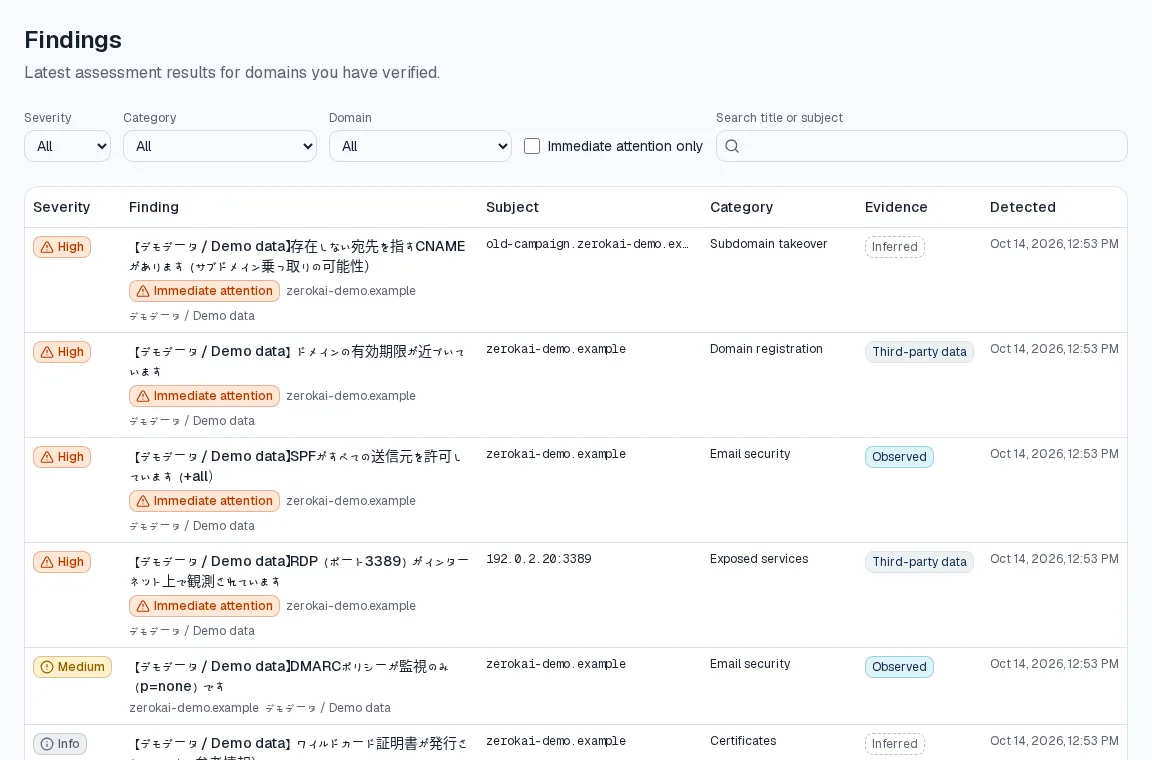
Separately, findings to deal with first carry an “Immediate attention” mark. On the Findings screen you can filter by severity, category, and domain, or show immediate-attention findings only.
Why does an area say “Not covered”? Does it mean there is no problem?
No. “Not covered” means the area could not be checked. Common reasons:
- A data source did not respond at the time.
- The area, such as exposed services, needs domain verification first.
- ZeroKai does not perform that check yet. For example, matching known vulnerabilities (CVEs) against your assets is planned, so it always reads “Not covered” today.
ZeroKai never treats an unchecked area as safe. The reason is shown next to each area.
What is the difference between Observed, Third-party data, Inferred, and confidence?
These describe the evidence behind a finding:
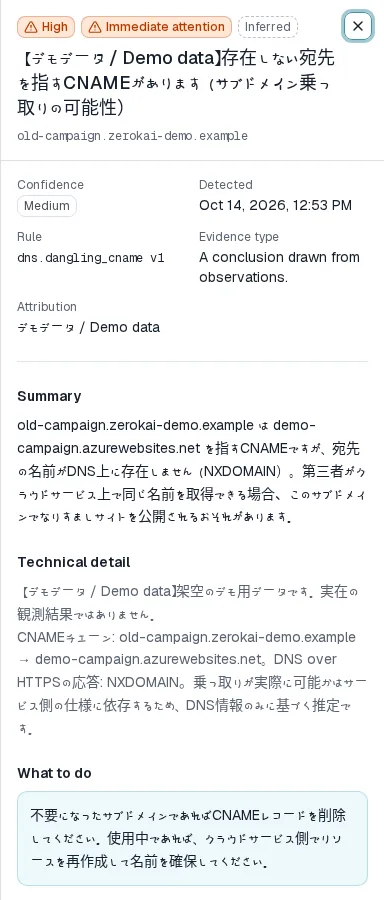
- Observed: a fact checked directly in this run, for example through public DNS.
- Third-party data: data a third party such as Shodan or a domain registry observed earlier. It may differ from the current state.
- Inferred: a conclusion drawn from what was observed.
Confidence (High, Medium, Low) is how likely it is that an asset really belongs to you. A host that points to an outside cloud service, for example, can have lower confidence.
I have a finding. What should I do?
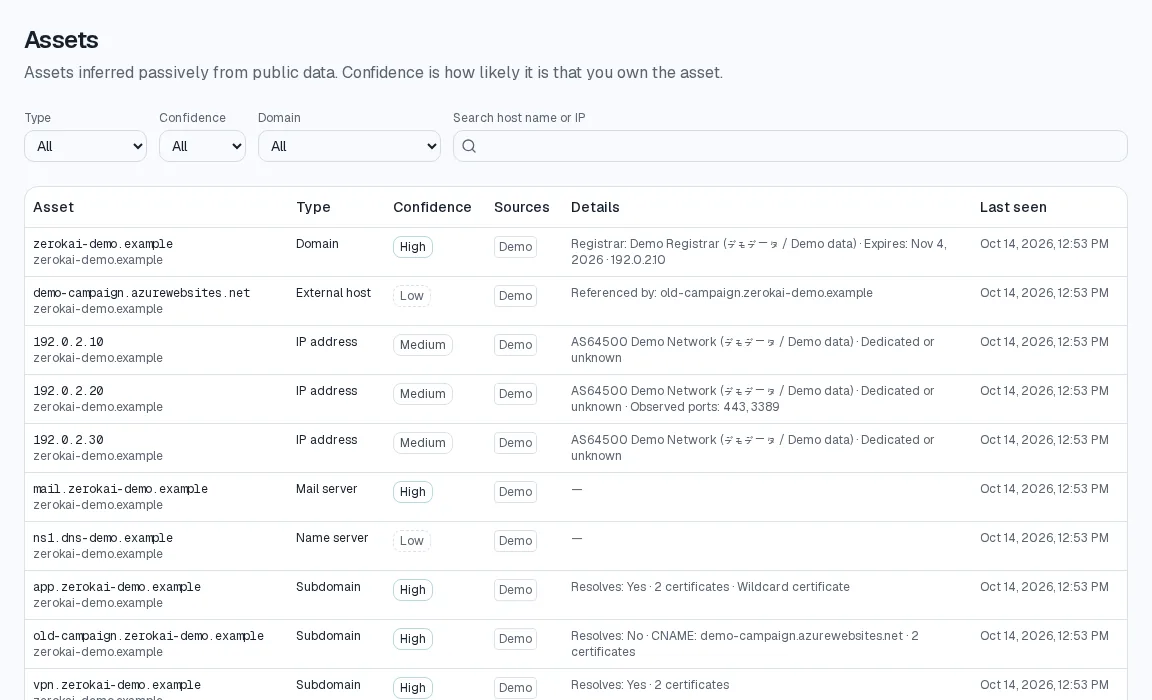
Select a finding to open its details: a plain summary, technical detail for specialists, “What to do”, and the evidence with its source and observation time.
A good way to work through findings:
- Start with Immediate attention and the highest severities.
- Check whether the host or server is still yours and still in use. Removing something unused often solves the finding.
- Pass “What to do” to whoever manages your website, email, or DNS.
- After the fix, choose “Run again” and confirm that the finding is gone.
There is no way yet to mark a finding as fixed or accepted. Each assessment produces a fresh set of findings, so run it again to confirm a fix. Finding status tracking is planned.
How do I explain a finding to my IT staff or vendor?
Passing on “What to do” and the evidence exactly as shown is the most reliable. It helps to include:
- The subject (host name, domain, or IP address) and the finding title
- The evidence source and observation time
- Your request, for example: “A service that checks what is publicly visible found this. Please confirm it and tell us whether action is needed.”
You can also invite colleagues to your organization so they see results directly; the Viewer role can read but not change anything. Exporting reports is not available yet, so share the screen contents with outside vendors. Note that finding text and remediation are currently in Japanese only, even when the screens are in English.
What does the Assets screen show?
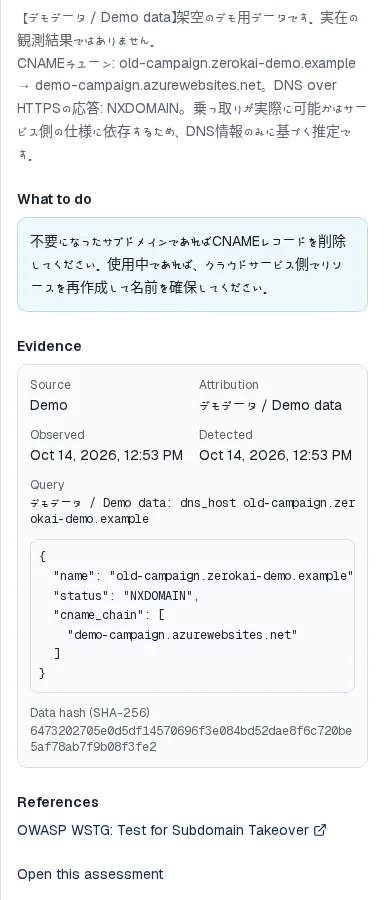
A list of assets related to your domain, found in public sources: domains, subdomains, IP addresses, mail servers, name servers, and external hosts. Each shows its type, confidence, sources, details such as DNS resolution, and when it was last seen.
Subdomains are found mainly through Certificate Transparency logs, so a name that never appeared in a public certificate is not found. On the free plan, one assessment covers up to 50 host names.
How often are results updated?
An assessment runs only when you choose “Start assessment” or “Run again”. Scheduled re-assessment and change alerts are planned as part of the monitoring plans.
Public data is cached for about 24 hours, so running again shortly afterwards may reuse the same data. Exposed-service data from Shodan can be several weeks old.
What can I do on the free plan, and what are the limits?
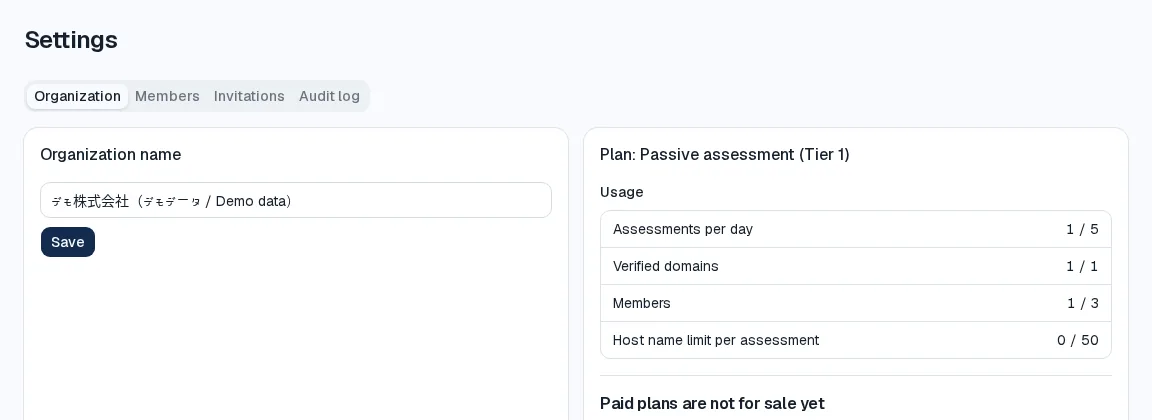
The free passive assessment (Tier 1) includes the following. The Settings screen shows your current usage.
- Verified domains: 1
- Assessments: up to 5 per day
- Host names per assessment: up to 50
- Organization members: up to 3
No credit card is needed and nothing switches to a paid plan automatically. Additional domains (¥9,800 each, excluding tax) are coming soon.
Can I invite colleagues? What can each role do?
Invite people by email from Settings → Invitations. An invitation is valid for seven days. There are three roles:
- Owner: everything, plus managing members and organization settings, and reading the audit log.
- Analyst: start and cancel assessments and verify domains.
- Viewer: read results only.
What is the Vulnerability intelligence page?
A place to browse public vulnerability information: the CISA KEV catalog (vulnerabilities known to be exploited), JVN iPedia, and NVD. You can also look up a CVE ID.
This information is not yet matched against your assets. Matching is planned.
Can I use ZeroKai in English?
Yes, the screens switch between Japanese and English. For now, finding text (summary, what to do, and so on) and account emails are in Japanese only. English versions are planned.
Paid plans
What the active assessment and monitoring plans include, prices, and contracts. Paid plans are coming soon.
Can I buy a paid plan now?
Not yet. The active assessment (Tier 2) and the monitoring plans are coming soon. Register your interest through the contact form and we will tell you when they launch.
The plans and prices on the pricing page are planned and may change before launch.
What is the difference between a passive and an active assessment?
A passive assessment (Tier 1, free) only reads public information and never sends traffic to your servers.
An active assessment (Tier 2) tests your servers directly, with the owner’s written authorization, within an agreed scope and time window. It actively checks open ports and services and safely verifies known vulnerabilities, so it finds things a passive assessment cannot.
What does an active assessment (Tier 2) include?
The planned contents are:
- Written test authorization and an agreed scope
- Active checks of ports and services
- Safe verification of known vulnerabilities
- A report and one re-test after you fix issues
The planned price is ¥150,000 for up to 30 hosts and ¥3,000 per additional host, excluding tax. Testing is planned to use low-impact settings and to run only in the agreed time window.
How do the monitoring plans differ?
Monitoring repeats the passive assessment on a schedule and tells you when something changes (coming soon). The planned differences, all excluding tax:
- Standard (¥29,800/month): 5 root domains, 300 monitored hosts, weekly re-assessment, email alerts, 3 users, email support on business days. Active assessment billed separately.
- Growth (¥79,800/month): 25 root domains, 3,000 monitored hosts, daily re-assessment, email, Slack, and webhook alerts, 15 users, audit log, priority support. One active assessment per year included.
- Enterprise / MSSP (custom quote): unlimited root domains and users, daily re-assessment, API, multi-organization management, SSO and audit log, a dedicated contact and review meetings. Four active assessments per year included.
Do prices include consumption tax?
No. All prices exclude tax; consumption tax is added on the invoice. For example, Standard at ¥29,800 per month is billed as ¥32,780 with 10% consumption tax.
How will payment and invoicing work?
We plan to invoice for bank transfer. Monitoring is planned as monthly or annual; annual saves about 17% (equivalent to ¥24,800 per month for Standard and ¥66,500 for Growth).
Invoice details will be announced at launch.
What about contract terms and cancellation?
A one-time active assessment is ordered per assessment with no minimum term. Contract terms and cancellation conditions for monitoring will be stated at launch.
As our Terms of Service say, we show the amount, what it covers, and when it is due before any fee applies. Fees already incurred are not refunded unless Japanese law requires it.
Could the free plan turn into a paid one without my noticing?
No. The free plan never asks for a credit card, so nothing can be charged automatically. A paid plan starts only if you order one.
Can MSSPs or resellers use ZeroKai?
The Enterprise / MSSP plan is planned to support managing many organizations in one place and offering ZeroKai as a service to your customers. Terms are discussed individually; choose “Partnership, press, or research” on the contact form.
Security and privacy
Who can see results, what data is kept, and for how long.
Who can see my results?
Only members of the organization that ran the assessment. Access is separated per organization in the database, so other organizations cannot see your results.
The asset list and finding details appear only after your organization verifies control of the domain.
What information do you store?
Account information (display name, email address, a password hash, organization name, role, and so on) and assessment information (the domains you assess, verification records, and the results built from public sources). We never store your password itself.
Results are kept while your organization keeps them; cached public data is deleted after about 24 hours. See the Privacy Policy for details.
Is the domain I assess sent anywhere?
To run the assessment, the domain name and, where needed, IP addresses are sent to public data providers: public DNS, Certificate Transparency logs, domain registries, RIPEstat, and Shodan. Passwords and contact messages are never sent.
Our analytics (Google Analytics) never receives the assessed domain, your name, or your email address. We do not sell personal information.
How is my account protected?
Passwords are stored only as one-way hashes, and session tokens are hashed too. Important actions in your organization are written to an audit log whose hash chain makes tampering detectable. Owners can read it in Settings.
Multi-factor authentication (MFA) and single sign-on (SSO) are not available yet. MFA is planned.
Can I close my account and delete my data?
Choose “Privacy request” on the contact form. After confirming your identity, we delete your account and data.
Still have a question?
Send it through the contact form. We are also happy to help before you start, or with explaining results to your IT vendor.